Clackery / Field note
How to change what the Command, Option and Control keys do on a Mac
You can change what the Command, Option, Control, Caps Lock and Globe keys do in macOS. Here is where to find the setting and how to undo a change.
macOS lets you change the job of five keys on your keyboard: Caps Lock, Control, Option, Command and Globe. This can help when you connect a keyboard made for Windows, or when a key you use often is in an awkward place.
Apple groups these together as modifier keys because you normally hold one while pressing another key. Command-C, for example, copies the selected text or file. You can reassign them in System Settings without installing another app, and the same panel includes a button that restores the original layout.
These steps were checked on macOS 27. The names and positions may look a little different on older versions of macOS, but the setting works in much the same way.
Before you change a key
This setting changes what a physical key does across macOS. If you turn Caps Lock into Control, pressing Caps Lock will behave like the Control key wherever macOS or an app uses it. It will no longer keep letters capitalized.
That is different from changing a single shortcut such as Command-Space. Individual shortcuts have their own sections under Keyboard Shortcuts, while the Modifier Keys panel changes the key itself.
It is worth taking a screenshot or making a note before you change anything. The new layout may make perfect sense today, but that record will help if a shortcut feels unfamiliar several weeks later.
How to change the Command, Option, Control or Caps Lock key
- Open the Apple menu in the top-left corner of the screen.
- Choose System Settings, then select Keyboard in the sidebar.
- Click Keyboard Shortcuts.
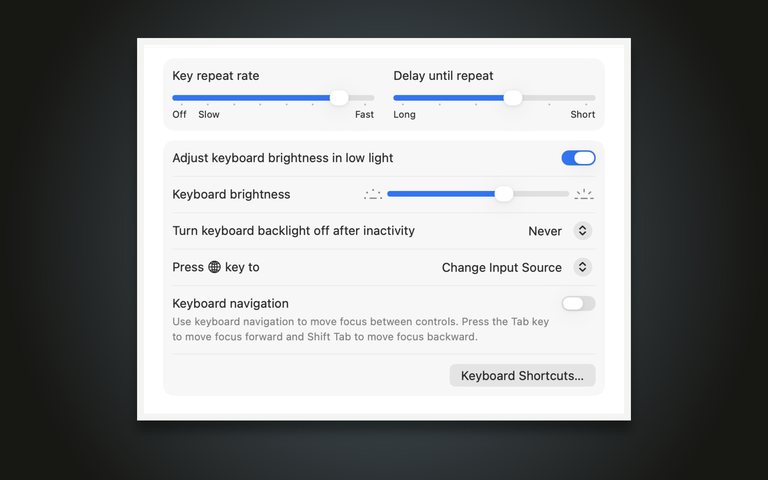
- Select Modifier Keys at the bottom of the sidebar.
- If more than one keyboard appears, use Select keyboard to choose the one you want to change.
- Open the menu beside the key you want to change and choose its new action.
- Click Done.
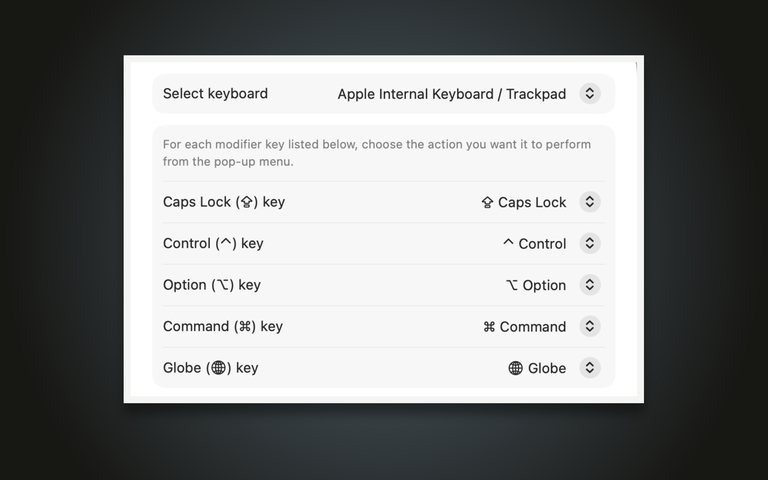
The label printed on the key will not change, of course, so the note or screenshot you made earlier becomes useful here. It also makes experimenting less of a commitment because you can always see what you started with.
A useful example: turn Caps Lock into Control
Apple uses Caps Lock-to-Control as an example in its own guide. It can be useful if you press Control often, rarely use Caps Lock and find the usual Control key uncomfortable to reach.
Open the menu beside Caps Lock key and choose Control. The row should then read:
Caps Lock key → Control
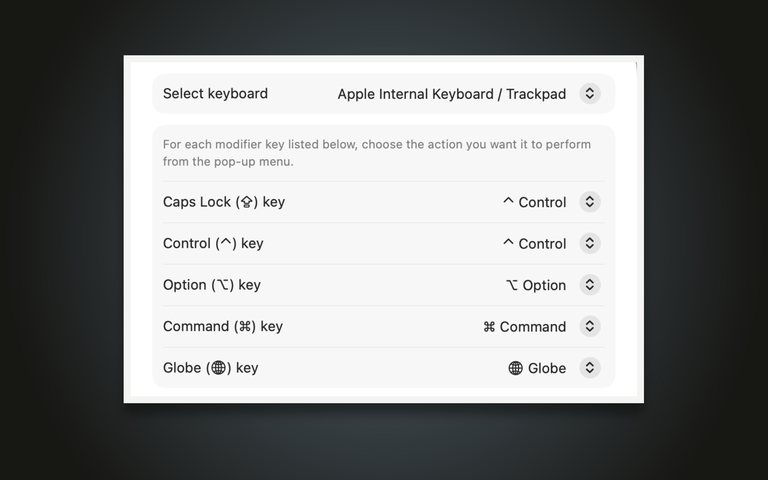
This gives you a second Control key; it does not move or disable the original one. Try the change only if it solves a real problem for you. A different key position is not automatically a better one.
What each choice means
The menu allows a physical key to perform any of these actions:
- Caps Lock: keeps letters capitalized until you turn it off.
- Control: forms shortcuts such as Control-Command-Q.
- Option: forms shortcuts and types additional characters.
- Command: handles many familiar shortcuts, including copy, paste and save.
- Globe: works with supported system actions and the function-key row.
- Escape: performs the same action as the Escape key.
- No Action: disables the key.
No Action can be useful if you keep pressing a key by mistake, but remember that it will do nothing until you return to this panel and give it a job again.
Using a Windows keyboard with a Mac
Windows keyboards use different names for some of the same jobs. Apple explains that Alt takes the place of Option, while Ctrl or the Windows-logo key can take the place of Command. This is why copy and paste can feel backwards when you first connect one.
Before changing anything, use Select keyboard at the top of the Modifier Keys panel and make sure you have chosen the external keyboard. macOS can keep different settings for different keyboards, so there is no need to disturb the built-in MacBook layout to fix an external one.
How to undo the changes
Go back to System Settings → Keyboard → Keyboard Shortcuts → Modifier Keys, choose the keyboard you changed and click Restore Defaults.
I used Restore Defaults after changing Caps Lock to Control for this guide. It returned Caps Lock, Control, Option, Command and Globe to their original actions. If only one key needs fixing, you can instead open its menu and choose the action that matches the label printed on it.
If a shortcut still does not work
Start by confirming that the correct keyboard is selected. If its modifier keys look right, find the individual shortcut inside its category under Keyboard Shortcuts.
Apps can define their own shortcuts, and two actions can sometimes ask for the same combination. In that case, macOS may show a warning beside the conflicting shortcut. You can change one of the combinations there, or check the app's menus to see which keys it expects.
There are only five keys in this panel, but they can make a familiar keyboard feel surprisingly different. Try one change, give your hands a little time to judge it, and remember that Restore Defaults is waiting if you still prefer the old layout.