Clackery / Field note
How to create a keyboard shortcut for a Mac app
Did you know you can give an existing app menu command its own keyboard shortcut on macOS? Using my new mechanical keyboard is even more exciting.
The beauty of using a keyboard all day long at work and then at home is that you eventually get comfortable relying on it... for everything. The mouse becomes an afterthought and only remembered in duress. Part of that comfort is owed to the operating system and the apps and interfaces you use in it.
A lot of apps, both built-in and third-party come with their own slew of keyboard commands that make using that app quick and easy.
I, for one, am a huge keyboard fan. I'd love to operate everything on my Mac with the keyboard. And that is precisely why I also prefer Vim keybindings on every interface that allows me to type words.
Some Mac commands are easy to remember because you use them all day. For example, copy is Command-C. Undo is Command-Z.. Your hands know where to go before you have even thought about it.
Then there are the commands you use just often enough to be annoying. Maybe it is buried two menus deep in a writing app, or perhaps it is a formatting option you need several times during one job and then forget about for a week. Each time, your work pauses while you reach for the pointer and hunt for the same line again.
That small interruption adds up. More importantly, it breaks the rhythm of whatever you were doing. A custom keyboard shortcut gives that familiar menu command a place in your muscle memory.
macOS has this feature built in, so there is no extra app to install. For this guide, I used TextEdit and assigned Control-Option-Command-L to Use Default under its Ligatures menu.
Copy the command’s exact name first
Start in the app, not in System Settings. Open the menu you normally use and find the command you want to speed up.
In TextEdit, for example, open Format, move to Font, then Ligatures. The command used here is Use Default, which makes the full path Format → Font → Ligatures → Use Default.
Write down the label exactly as it appears, including capital letters, punctuation and an ellipsis if the command uses one.
That last detail is easy to miss with commands such as Export as PDF…. The ellipsis is part of the name, so include it when you copy the label.
Add the shortcut
- Open the Apple menu, choose System Settings, then select Keyboard.
- Click Keyboard Shortcuts.
- Select App Shortcuts in the sidebar.
- Click the Add button.
- Choose the app from the Application menu. Choose All Applications only when the same menu command should use the shortcut across several apps.
- Enter the command exactly in Menu title.
- Click Keyboard shortcut, then press the combination you want to use.
- Click Done.
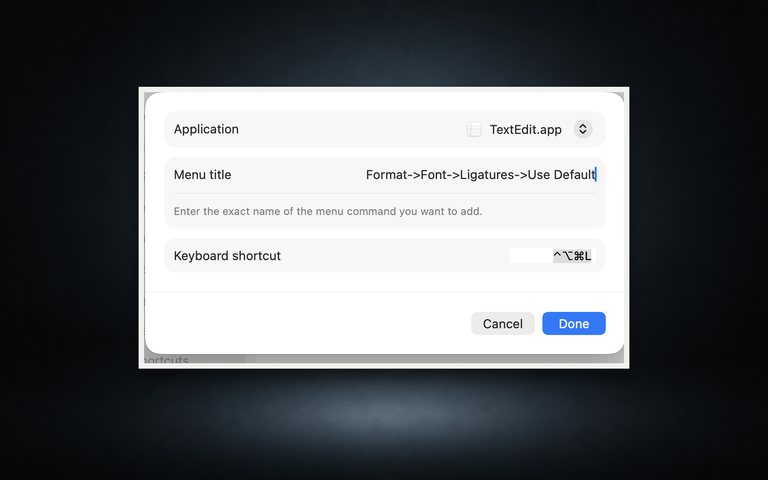
The Application choice keeps the shortcut tied to the app where you need it. All Applications is useful when several apps use the same command name, but an app-specific shortcut is a cleaner place to begin.
For a command inside a submenu, join each level with ->. The TextEdit path in this test became Format->Font->Ligatures->Use Default.
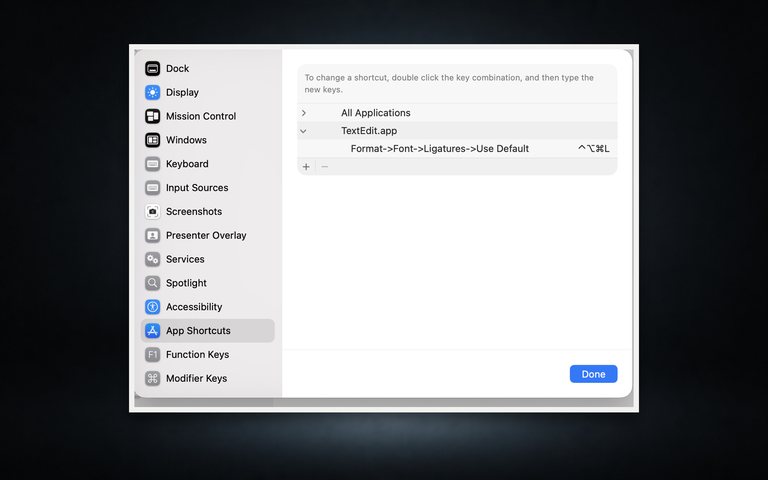
After I pressed Control-Option-Command-L and clicked Done, the shortcut appeared under TextEdit in the App Shortcuts panel.
Test it from the menu
Go back to the app and open the same menu. The new combination should now sit beside the command, just like one supplied by the app.
Press it once while you are in a place where the result is easy to see. In my TextEdit test, the menu showed Control-Option-Command-L beside Use Default, and the shortcut still worked after I quit and reopened the app.
If it has not appeared yet, quit and reopen the app. Apple includes that step in its keyboard-shortcut guidance. Some apps do not refresh their menus immediately.
Still nothing? Put the menu and your App Shortcuts entry side by side and compare the names. A missing ellipsis or slightly different submenu path is usually quicker to spot that way.
What to do when the shortcut conflicts
Your first choice may already belong to something else. When that happens, the new shortcut may do nothing, or the older command may keep control of the combination.
Return to App Shortcuts, double-click the combination and try another one. Adding Control or Option to a familiar two-key shortcut often gives you something memorable without colliding with a common command.
It is worth opening the app’s menus once before settling on the new keys. That quick scan shows which combinations the app already uses and saves a round of guesswork.
If you switch between keyboard layouts or input languages, test the shortcut in the layout you normally work with. The same physical key does not always produce the same character.
If you meant to change what Command, Option or Control does everywhere, that is a different setting. Clackery’s guide to changing the Command, Option and Control keys explains the distinction.
Remove the shortcut
Some things never stick. If there's a command that you've tried to use multiple times and yet your muscle memory has a hard time registering it, there is no reason to keep it around.
Open System Settings → Keyboard → Keyboard Shortcuts → App Shortcuts and select the entry. Click the Remove button, then reopen the app if the old combination is still visible in its menu.
I removed the TextEdit shortcut the same way. Once TextEdit reopened, Control-Option-Command-L was gone from the Ligatures menu and the original command was unchanged.
The best candidate for this feature is not the cleverest shortcut you can invent. It is the command that makes you reach for the same menu repeatedly.