Clackery / Field note
How to use F1–F12 as standard function keys on a Mac
Want your Mac's function keys to always work like, well, function keys? Here's how to!
A Mac user’s relationship with the function-key row is sacred. From adjusting the screen’s brightness to controlling media, those keys are genuine lifesavers.
But the top row has a second job: F1 through F12. Some apps, games, remote desktops and developer tools lean on those standard keys. On a Mac, using one normally means pressing it together with the Fn/Globe key in the bottom row.
That is fine for the occasional command. It gets irritating when an app expects a function key again and again.
Thankfully, macOS gives us a way to solve that problem. You can reveal F1–F12 for one press, or reverse the row so the standard function keys are always ready.
Use a function key once
Hold Fn/Globe, then press the function key. For example, Fn-F3 sends F3 to the active app instead of using the Mission Control action printed on the key.
What happens next depends on the app. A standard function key is an input, not a universal command, so F5 may refresh something in one app and do nothing in another. Check the app’s menus or shortcut settings when the result is unclear.
Apple says that if your keyboard has no Fn key, try holding Control while pressing the function key.
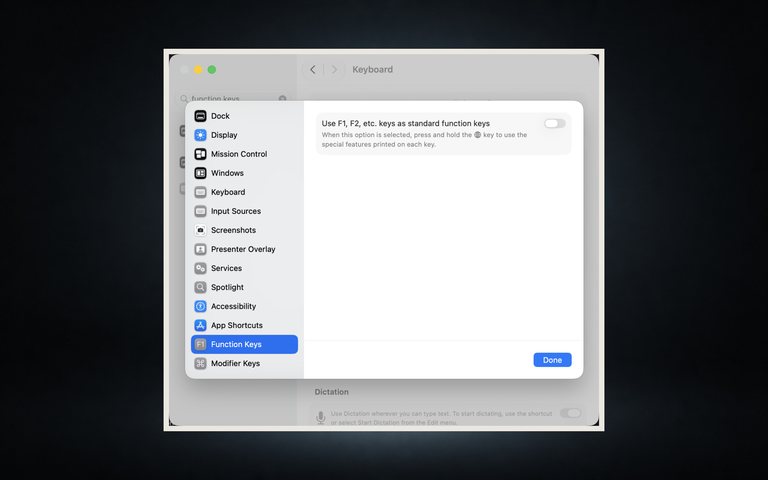
Make F1–F12 the default
On macOS Ventura or later:
- Open the Apple menu and choose System Settings.
- Select Keyboard in the sidebar.
- Click Keyboard Shortcuts.
- Select Function Keys.
- Turn on Use F1, F2, etc. keys as standard function keys.
- Click Done.
The top row now sends F1–F12 without Fn/Globe. The trade reverses neatly: hold Fn/Globe when you want brightness, volume or another feature printed on a key.
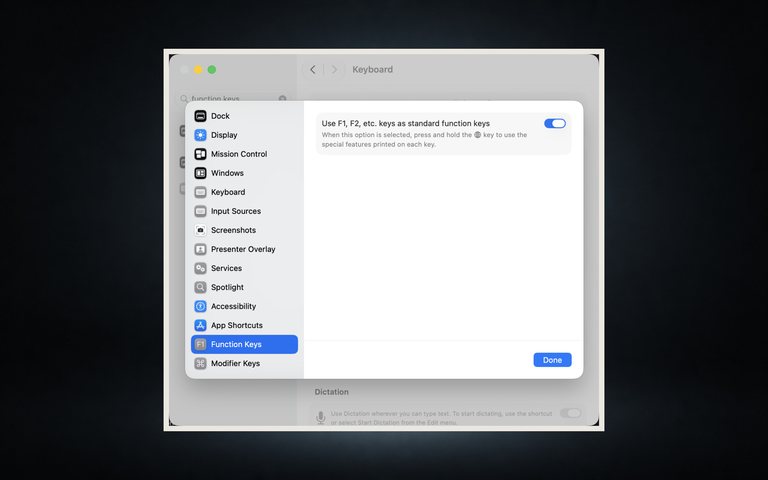
Change it back
Return to System Settings → Keyboard → Keyboard Shortcuts → Function Keys and turn the setting off. The printed media and system controls become the default again.
Try the reversed layout in the app that made you consider it. If you keep reaching for volume and getting an F-key instead, return to the same panel and turn the switch off.
If the Function Keys section is missing
Apple warns that this setting may not appear for a keyboard made by another manufacturer. That keyboard may handle its top row with a hardware mode, its own shortcut or a vendor utility. Check its manual before installing anything.
If the section is present but a key still does nothing, look at the active app’s shortcut settings. Changing the row tells macOS which key signal to send; it does not give every app a command for every function key.
If the command you need is already in a Mac app’s menu but has no useful key combination, you can also create an app-specific keyboard shortcut.
Fn/Globe is enough when you need a function key occasionally. Reverse the default when F1–F12 belong to your daily work—and remember that the same key still gives you the other side of the row whenever you need it.